
Plan / tier availability
- Available to all users with limitations based on the user's Workspace and Asset access.
How to Use It
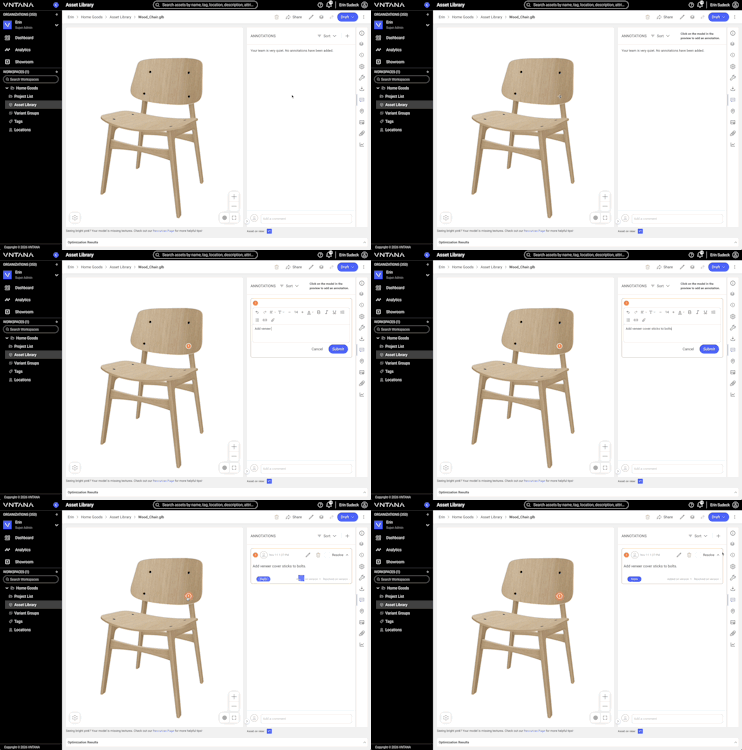
1. Add a Pinned Annotation
Pinned annotations allow you to create a callout on a specific area of the 3D asset.
Follow these steps:
- Log in to VNTANA.
- Open an asset and go to the Annotations panel.
- Click the + button (labeled "Add Annotation" on hover).
- Place a pin on the 3D model.
- Add your comment in the panel.
- Submit the Annotation.
- The Annotation appears in the list with the pin number + user icon + timestamp.
Important: Pinned Annotations are only available for 3D assets. Non-3D assets only support general commenting.
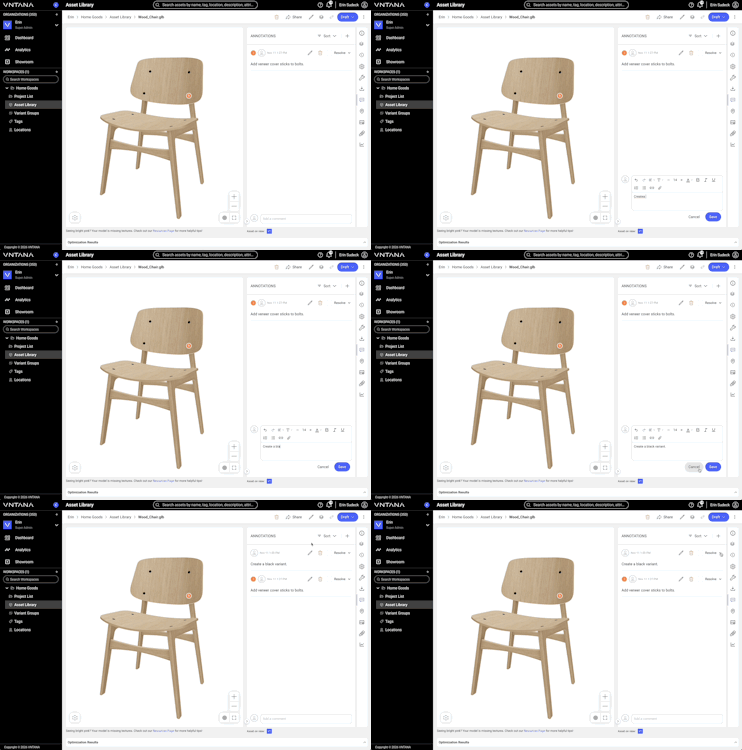
General Comments work like Annotations but don't require a pin on the 3D model — useful for quick, general feedback.
Follow these steps:
- Log in to VNTANA.
- Open an asset and go to the Annotations panel.
- Locate the comment field in the footer at the bottom of the panel.
- Click into the field and type your comment. Save it.
- The comment appears at the top of the list with a user icon + timestamp (no pin number, no pin icon).
How General Comments differ from Annotations
|
Annotation |
General Comment |
|
|
Requires a pin on the 3D model |
Yes |
No |
|
Title shown |
Pin number + user icon + timestamp |
User icon + timestamp |
|
Supports edit/delete |
Yes |
Yes |
|
Supports resolving |
Yes (permission-dependent) |
Yes (permission-dependent) |
|
Available on non-3D assets |
No |
Yes |
Important: Non-3D assets only support general commenting.
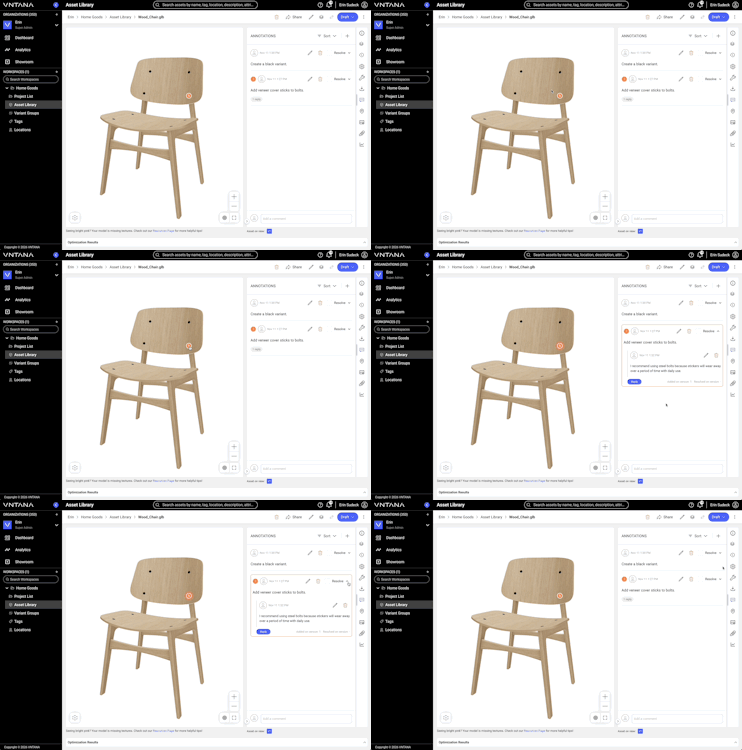
Annotations and Comments show a preview by default. Click the Annotation to view the full details and see the matching pin.
Follow these steps to see the full detail:
- Log in to VNTANA.
- Open an asset and go to the Annotations panel.
- You will see a preview of all annotations in the panel.
- If attachments are included, a label stating the number of attachments will be visible.
- If replies are included, a label stating the number of replies will be visible.
- To view the corresponding Annotation, click a pin on the 3D model.
- Once clicked, the matching annotation item will expand.
- Alternatively, click an Annotation or Comment to expand it.
- If a pinned annotation, the corresponding pin will highlight in 3D.
- Expanding reveals:
- Any attachments
- Reply thread and Reply button
- Helper text noting the asset version on view when the Annotation/ Comment was added, and the version on view when the Annotation/ Comment was resolved on (if applicable)
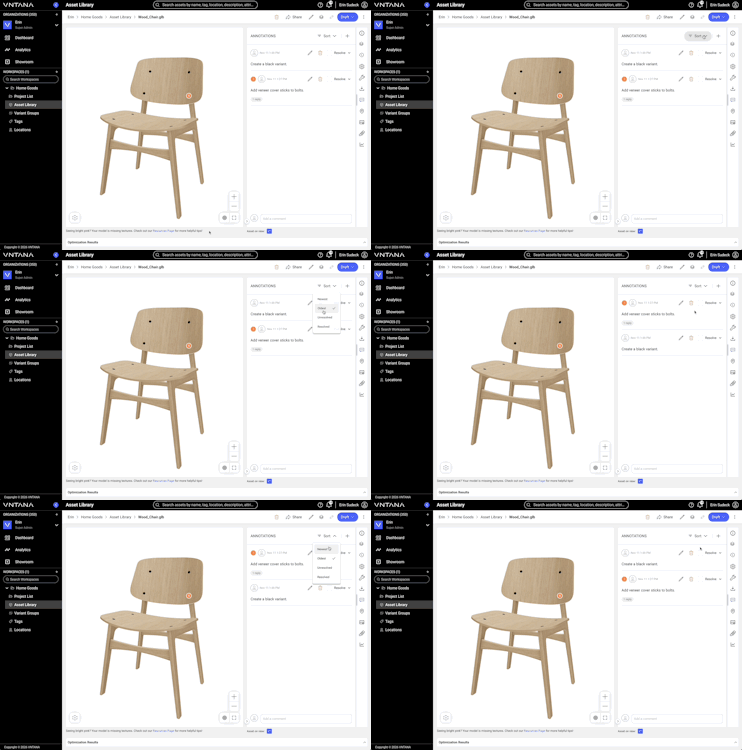
The Sort button makes it easy to reorder Annotations and Comments without scrolling through the full list.
Follow these steps:
- Log in to VNTANA.
- Open an asset with Annotations and go to the Annotations panel.
- Locate the button group at the top of the panel: Sort | +.
- Click Sort.
- A dropdown menu opens with four options:
- Newest (default)
- Oldest
- Unresolved
- Resolved
- A checkmark appears next to the currently selected option.
- Select an option to reorder the list.
Good to know:
- Resolved and Unresolved only reorder the list — they don't hide or filter out the other state.
- The sort selection does not persist. It reverts to the default (Newest to Oldest) if you change tabs, refresh the page, or leave and return to the asset.
Follow these steps:
- Log in to VNTANA.
- Open an asset and go to the Annotations panel.
- Locate the comment or Annotation you want to manage.
- Use the available actions, based on your role's permissions:
- Edit — update the comment text.
- Delete — permanently remove the comment or Annotation.
- Reply — add a reply to the thread.
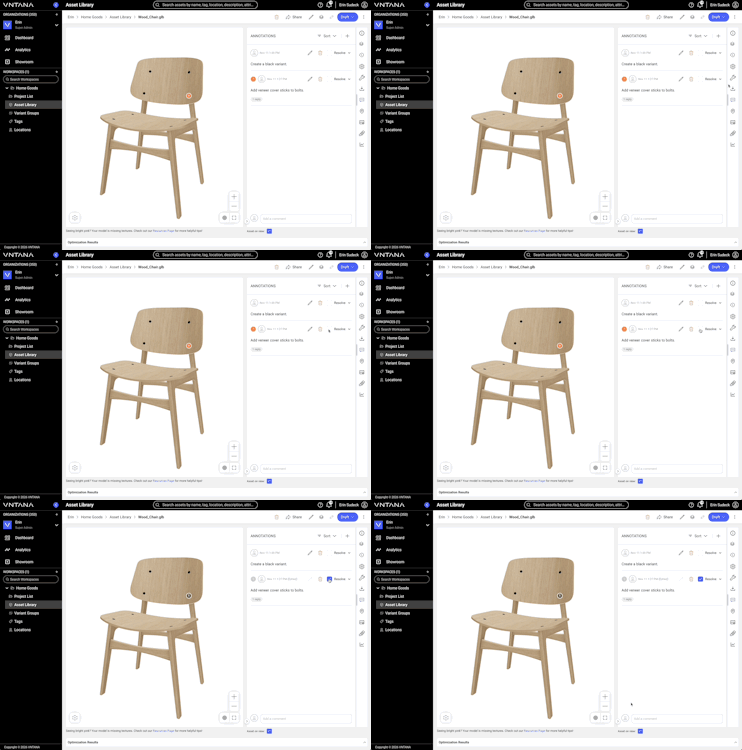
- Resolve — mark the comment or Annotation as resolved.
Troubleshooting Basics
|
Issue |
Quick Check |
|
Sort order reset after refreshing or leaving the page |
This is expected — the sort selection does not persist. It always resets to Newest to Oldest. |
|
Selecting "Resolved" or "Unresolved" doesn't hide the other items |
This is expected — these options only reorder the list, they don't filter it. |
|
Can't add a pinned Annotation on a non-3D asset |
This is expected — non-3D assets only support General Comments, since there's no 3D model to place a pin on. |
|
Resolve option isn't available |
Only SA, OO, OA, WA, and Client roles can resolve comments and Annotations. |