
What is It?
Users can now see relevant subscription metrics throughout the Platform, including:
- Storage Used / Limit
- Total Live Assets / Limit
- Total Editor Users / Limit
- Total User Count
- Total Asset Count
The updates also provide warnings when an organization is approaching or has reached a subscription limit.
Plan / Tier Availability
The updated subscription experience applies to all organizations.
How to Use It
1. View Subscription Usage on the Dashboard
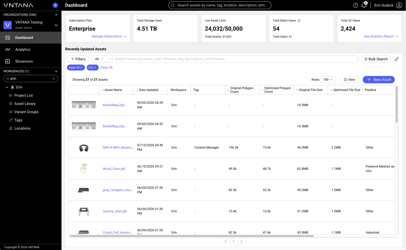
The Dashboard now provides an overview of organization usage.
The Dashboard includes:
- Total Storage Used: Shows the organization's current storage usage as well as the limit.
- Included in Storage Used:
- Original asset files
- Optimized asset files
- Attachments
- Renders
- Hotspot images
- Custom HDRI maps
- Not included:
- Projects
- Presets
- Attributes
- Tags
- Locations
- Descriptions
- Showrooms
- Variant Groups
- Analytics
- Included in Storage Used:
- Total Live Assets: Shows the organization's current number of Live Assets and the applicable Live Asset Limit.
- Included in Live Asset Count:
- Assets in Client states (Client Review, Client Approved, Client Rejected, Client Hold, Client Dropped).
- Asset in the Live Internal state
- Assets in the Live Public state
- Included in Live Asset Count:
- Total Editor Users: Shows the organization’s current count of Editors and the applicable Editor User Limit.
- The card also displays the Total User count.
- If a subscription limit is Unlimited, the limit is not displayed as a number.
2. View Subscription Details in Settings
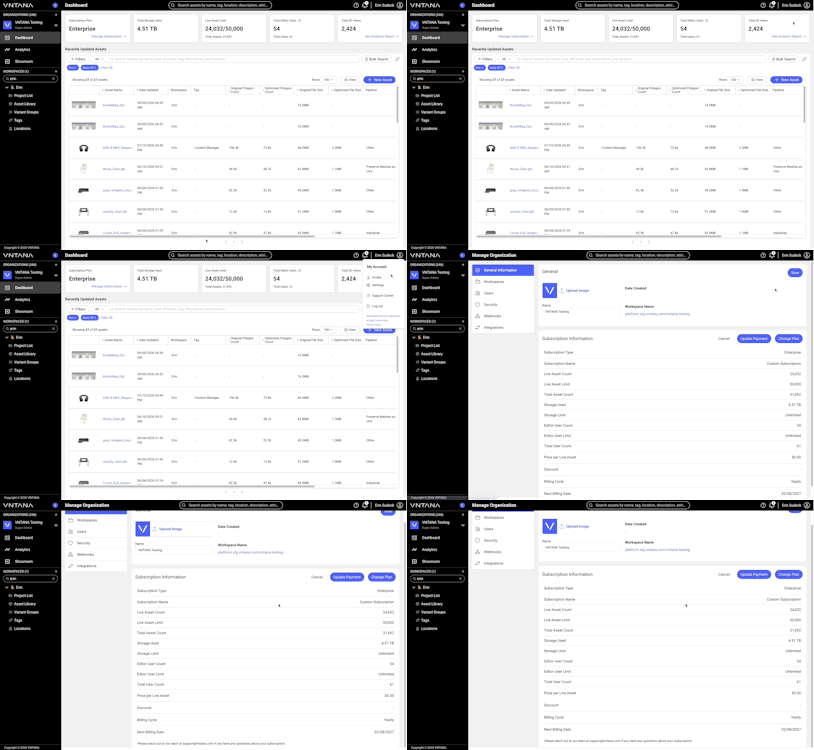
To review subscription information:
- Open Settings.
- Go to General Information.
- Locate the Subscription Information section.
Subscription information includes:
- Storage Used / Limit
- Editor User Count / Limit
- Total User Count
- Live Asset Count / Limit
- Total Asset Count
- Billing Cycle
This gives Organization Owners and Organization Admins a centralized view of their subscription and organization usage.
3. Understand Approaching Limit Warnings
When a Storage or User Limit reaches 90%, users receive a warning.
Warnings can appear as:
- A Platform banner
- A Platform notification
- An email notification
The notification shows the current usage compared with the subscription limit.
The existing Live Asset limit notifications and banners continue to apply where applicable.
4. What Happens When a Limit Is Reached?
When a subscription limit has been reached, VNTANA prevents actions that would exceed the applicable limit.
Storage Limit
Actions that require additional storage may be blocked, including:
- Creating assets
- Editing assets
- Bulk editing assets
- Adding attachments
- Adding custom HDRI maps
Users will receive a message explaining that there is not enough storage available to complete the action.
User Limit
When the User Limit is reached, users cannot invite additional users with editing capabilities from:
- The Users page
- Share modals in Asset Library
- Asset Details
- Projects
When the User Limit is reached, users with Viewing access can be invited.
Troubleshooting Basics
|
Issue |
Quick Check |
|
Storage warning appears |
Review Storage Used in Dashboard or Settings → General Information. |
|
User warning appears |
Review the current Editor User count and limit. |
|
Live Asset warning appears |
Review Total Live Assets and the applicable Live Asset Limit. |
|
Cannot complete an action |
Check whether the action would exceed a subscription limit. |
|
Cannot invite a user |
Check whether the User Limit has been reached. |
|
Subscription information looks incorrect |
Contact your Organization Owner or VNTANA support. |