
What is it?
It unifies the search system, adds powerful new filters like Attribute-level filtering, introduces exact match logic, and supports bulk searching by CSV (Excel coming soon).
This upgrade helps users:
- Find assets more precisely
- Search large groups of assets in one step
- Filter by detailed metadata, missing metadata, and attributes
- Navigate a consistent search experience across the platform
Plan / Tier Availability
- Available to all platform users.
Integrations or Dependencies
- A new endpoint has been introduced to support enhanced asset search capabilities while maintaining backward compatibility with the previous version. For more information, reference the Search API documentation.
- New endpoint:
POST /v2/products/clients/search
- Updated parameters:
- searchTerm- attributes- tagsUuids, locationsUuids, projectsUuids
- New parameters:
- matchAll- integrationsStatus
- New endpoint:
- Supports CSV (Excel coming soon) uploads (similar to Metadata App bulk functionality)
How to Use It
1. Search Bar
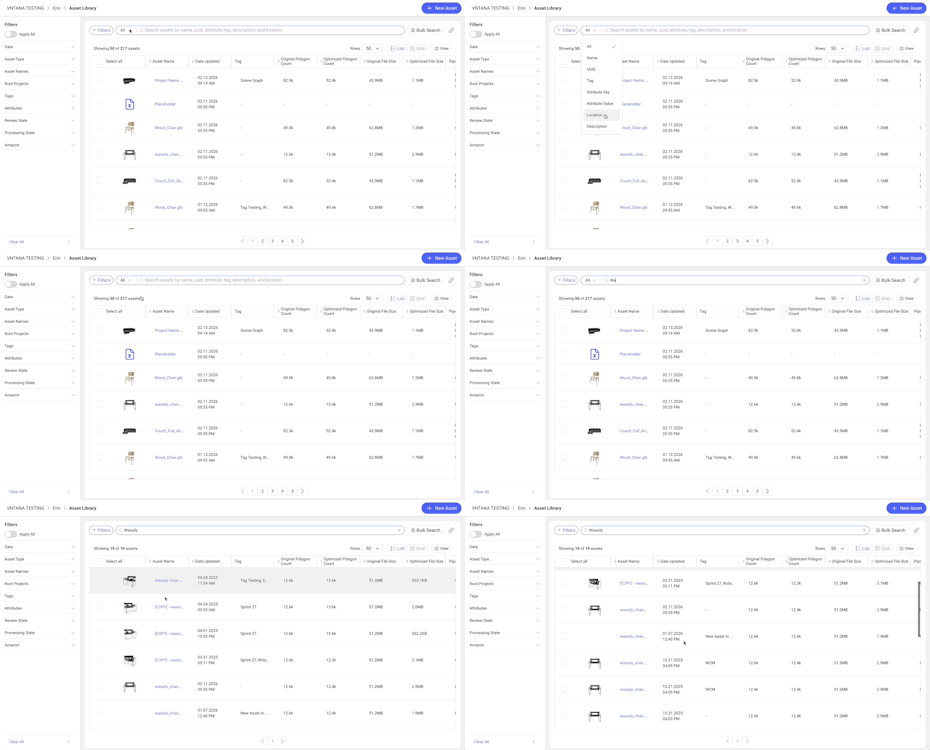
Search for assets by keyword within the search bar. Utilize the Search Type menu to narrow down the keyword search.
- Enter keywords into the search bar.
- Choose a Search Type (dropdown inside the bar):
- All
- Asset Name
- UUID
- Tag
- Location
- Description
- Attribute Key
- Attribute Value
- Hit Enter to search.
Exact Match Results:
Search uses a fuzzy search method. The exact match will always appear first in the list, while related matches will follow in the search results.
The Global Search Bar does not include the Search Type menu.
2. Filters Button & Variants
Filters appear in two forms, Filters Menu and Filters Panel, and are outlined below. Use the filters to find specific assets based on the following options:
- Date Range
- Workspaces → this option is available only in the Filters Menu.
- Asset Type
- Asset Name
- Root Projects
- Tags
- Attributes
- Review State
- Processing State
- Amazon Status
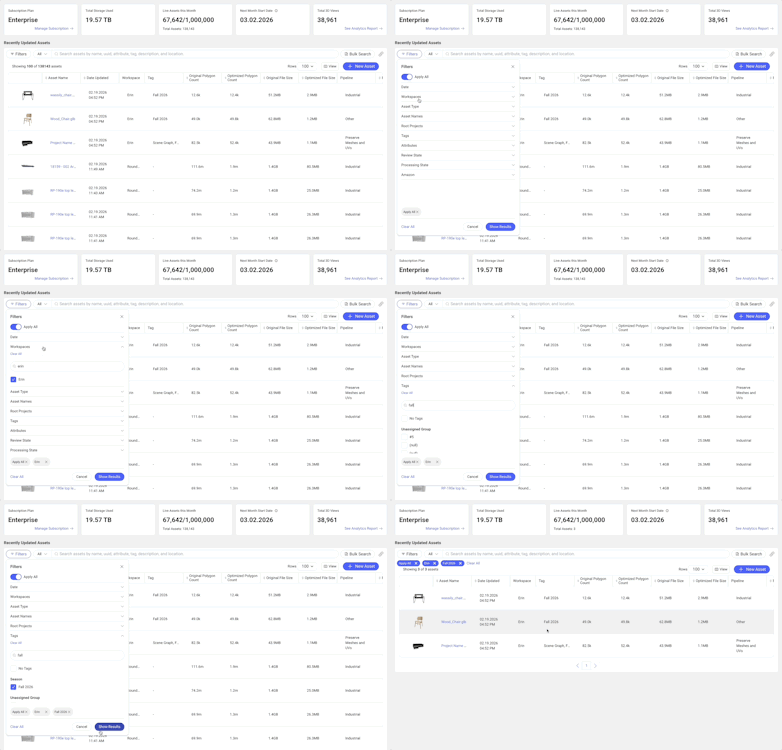
A. Filters Menu (pop-up)
Used in: Dashboard, Variant Groups, Locations, Analytics, Showrooms, Create/Edit Showrooms.
Follow the steps below to use filters.
- Click Filters.
- A dropdown menu appears.
- All categories are collapsed by default.
- Choose filters → click Show Results.
- Applied filters appear as tags underneath the toolbar.
- Click X on a tag or Clear All to remove filters.
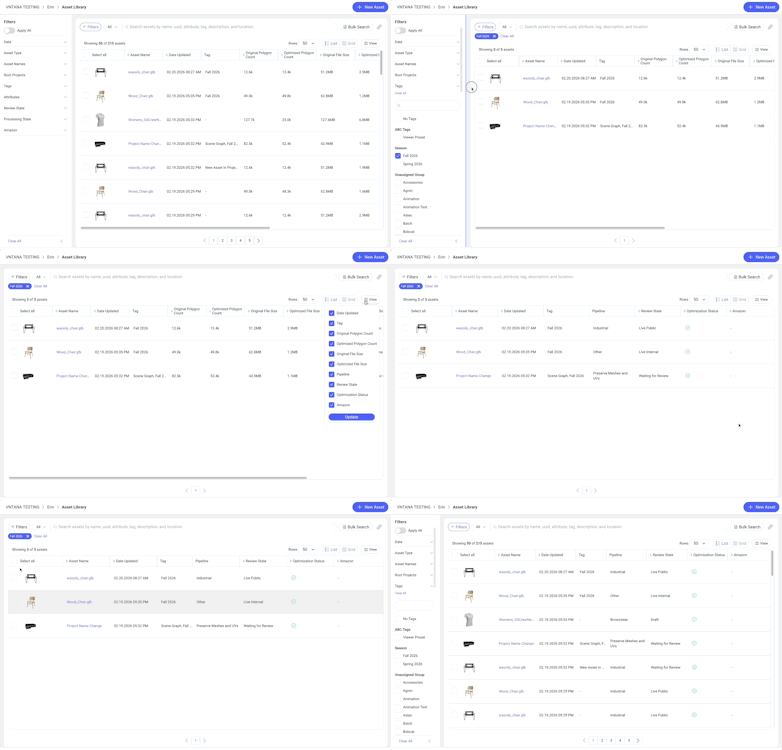
B. Filters Panel (left side panel)
Used in: Asset Library, Projects, Create/Edit Projects.
Follow the steps below to use filters.
- Panel is expanded by default.
- Choose filters.
- As filters are applied, the results are shown instantly.
- Collapse or resize the panel as needed.
- Quickly remove all filters with Clear All.
The list has also been updated to include:
- Resizable columns
- Hide columns within the View button
Other Tips:
- Share a link to your filtered results by copying the URL and sending it to another user, or click the Copy Link button (icon of a linked chain) to the right of the Search Bar or Bulk Search button.
- Filters and sorting will be preserved when refreshing the page or using the browser’s forward and back buttons.
3. Apply All Filters
To find assets that contain all of the selected filters, turn on the Apply All filters switch at the top of the panel/ menu.
- Apply All filters is on by default.
- When Apply All filters is off, the list will return assets that have at least one of the filtered items applied.
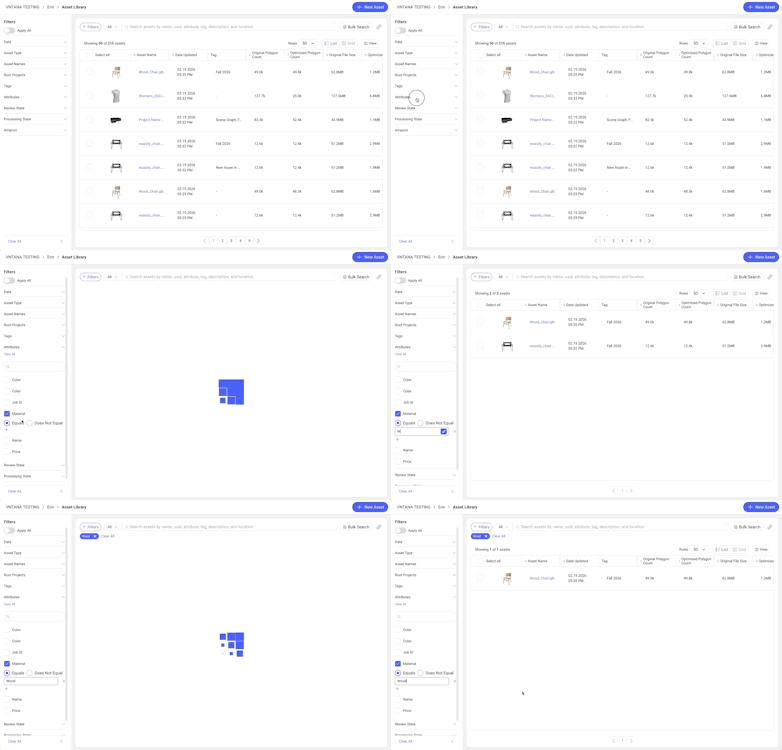
4. Filter by Attributes
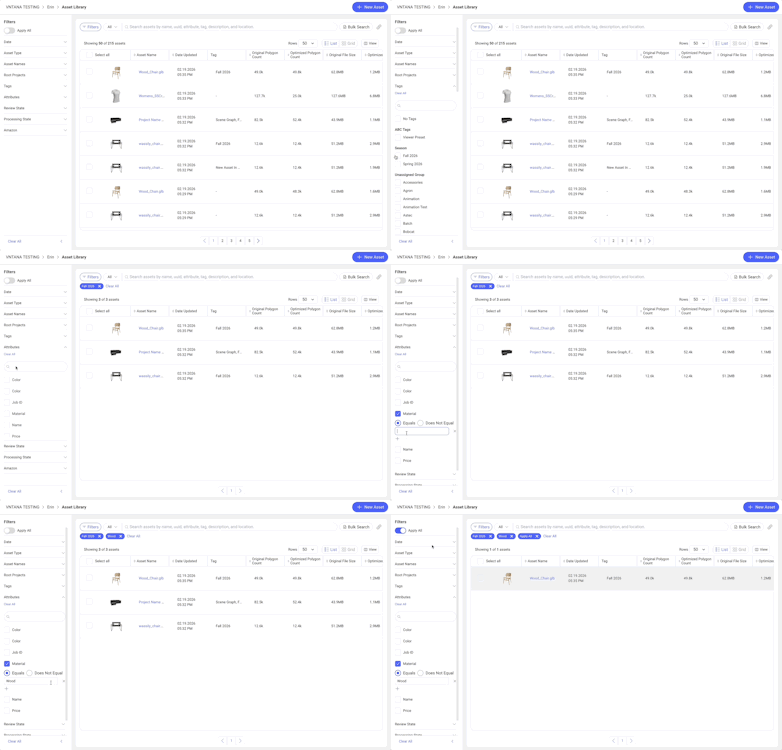
Follow the steps below to filter by Attributes.
- Open the Attributes accordion.
- Select an Attribute Key.
- Enter one or more Attribute Values.
5. Inverse Attribute Filtering
Follow the steps below to filter by Attributes that do not contain a specific value.
- After choosing an Attribute Key + Value.
- Select Does Not Equal to show assets that do not have that value.
- Works even when Apply All is ON.
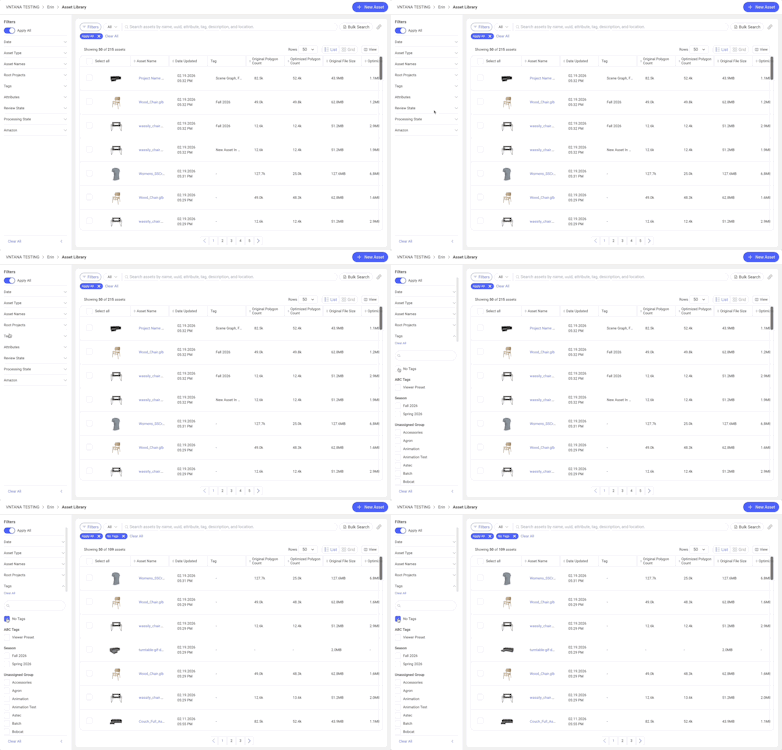
6. Filter by Missing Metadata
Follow the steps below to filter by assets that do not contain the following items.
- Projects → “No Projects”
- Tags → “No Tags”
- Attributes → “No Attributes”
- Amazon → “Not Submitted”
Usage:
- Turn on “Apply All”
- Select “No _____”
- You’ll see assets missing that metadata
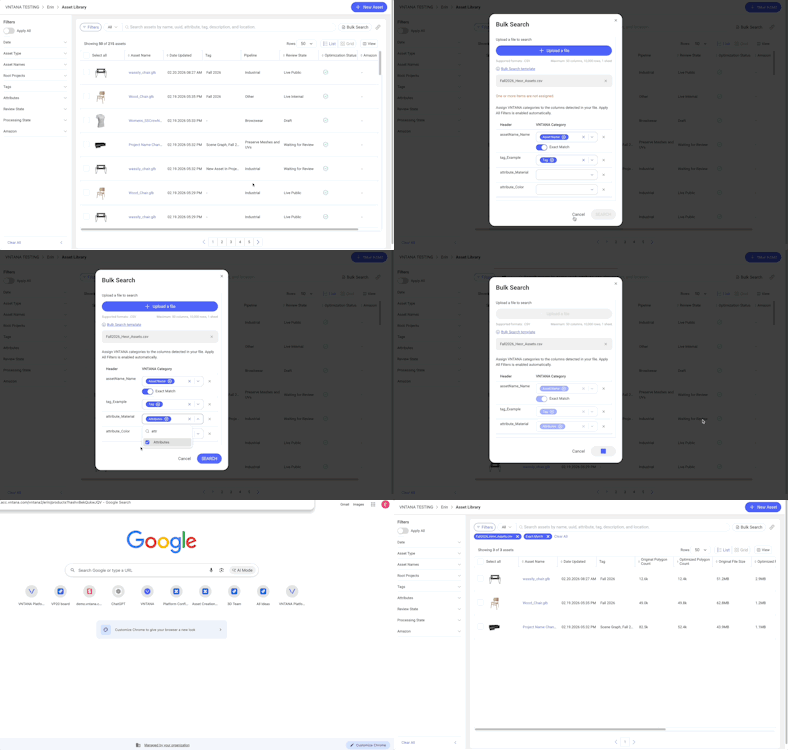
Follow the steps below to search for specific assets based on a data sheet. Bulk Search is available in the Dashboard, Asset Library, and Create/ Edit Showrooms pages.
- Click Bulk Search.
- A CSV template is available for download in the Bulk Search pop-up. Use the template to ensure the appropriate headers are used in your data sheet.
- Upload a CSV (similar to Metadata App).
- Excel support coming soon.
- The system will automatically assign VNTANA categories to the CSV headers (this is based on the headers' naming convention). If the system does not assign categories automatically, the categories can be manually assigned.
- Asset Name and Asset UUID can only be assigned once.
- All categories that will be used in the filtering process must have a VNTANA category assigned.
- Click Search.
- The results will be visible in the list.
Tips:
- Share a link to your Bulk Search results by copying the URL and sending it to another user, or click the Copy Link button (icon of a linked chain) to the right of the Bulk Search button.
- Bulk Search results will be preserved when refreshing the page or using the browser’s forward and back buttons.
- Apply additional filters and or search on top of the Bulk Search results.
Troubleshooting Basics
Common issues and quick checks
|
Issue |
Quick Check |
|
Filters not applying |
|
|
Apply All showing too few results |
|
|
No results found after Bulk Search |
|
|
Filters disappeared from the panel |
|